Slim face video editor
Adjust the outline of a face in your clip with Slim face, V-shaped face, or Jawline definition.
ChatCut Desktop
Slim a face in a video in ChatCut Desktop
- Select your clip. Choose the video clip on the ChatCut Desktop timeline.
- Open Face shape. In the Inspector, open Retouch, then Face, then Face shape. Open Facial features for eye or nose adjustments.
- Preview and export. Check the edit on several frames of your clip, refine the adjustment, then export your video.
Or ask the Agent in ChatCut Desktop
Free. Face reshaping runs on your computer and doesn't use credits; Agent messages do. Not available in ChatCut Web.
- ChatCut Desktop
- Runs on your computer
- No credits for manual edits


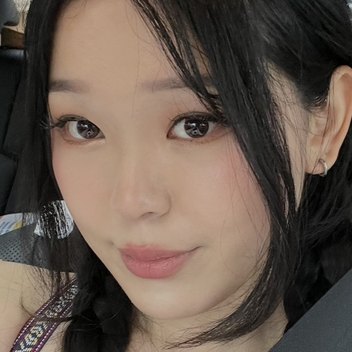

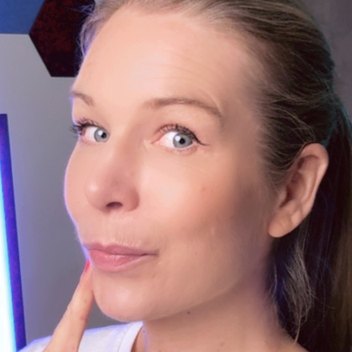


Trusted by 400,000+ creators
How it works
How to use the slim face video editor
- 01
Select your clip
Choose the video clip on the ChatCut Desktop timeline.
- 02
Open Face shape
In the Inspector, open Retouch, then Face, then Face shape. Open Facial features for eye or nose adjustments.
- 03
Preview and export
Check the edit on several frames of your clip, refine the adjustment, then export your video.
Why ChatCut
What you can adjust with the slim face video editor
-
Refine the face outline
Use Slim face to make a subtle adjustment to the overall face shape in your clip.
-
Adjust the lower outline
Try V-shaped face and check how the lower face looks in the preview.
-
Define the jawline
Use Jawline definition when the jaw is the part of the outline you want to adjust.
-
Adjust eye size
Use Enlarge eyes under Facial features if you want to make the eyes larger.
-
Adjust nose size
Use Nose size to make the nose larger or smaller.
-
Work on your computer
ChatCut Desktop processes the face adjustment locally. You can make the edit manually without using credits.
Tips
How to tune face shape and features
-
Start with a light adjustment
Make a small change with Slim face and review the face on a clear frame before adjusting anything else.
-
Compare the outline controls
Check the result of Slim face first. Then try V-shaped face separately so you can see what each adjustment does to the outline.
-
Check the jaw in motion
After using Jawline definition, play through a part of the clip where the person turns their head. Pause on different frames to judge the result.
-
Tune one feature at a time
Set Enlarge eyes or Nose size first, then review. Check the whole face again before combining adjustments.
Use cases
When to use a slim face video editor
-
Portrait close-ups
Refine the face outline and check the result at the size your viewer will see it.
-
Talking-head clips
Try Jawline definition on a frame where the jaw is easy to see, then play the shot to review it in motion.
-
Self-shot introductions
Make a small adjustment to eye or nose size in the clip you plan to use.
Keep editing
Explore other portrait edits
Use the beauty filter for video for skin tone and texture, or the video body editor for waist, leg, or shoulder adjustments.
- Conversational editing
- Text-based editing
- Auto-captions
- Motion graphics
- AI voiceover
- Generate clips
- Noise removal
- Multi-track timeline
-
You Can Now Edit Videos with Grok Bot
Edit with Grok Bot -
How to Make 3× the Content With AI (No Editing Experience)
Turn long videos into shorts -
I Turned One Product Photo Into a Full Ad With ChatGPT
Product ads skill -
How to Create Insane Motion Graphics with Astra 6
AI motion graphics
Skills
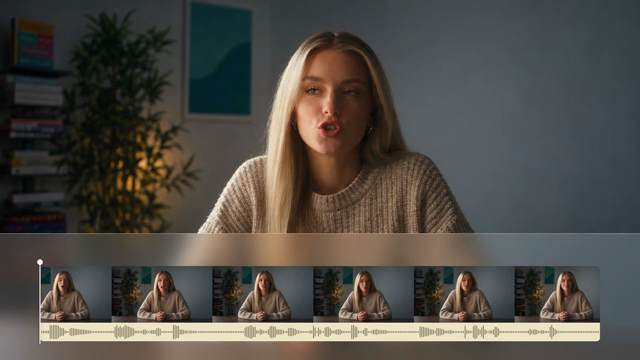
Hundreds of skills for any video
100+ Skills. No experience needed. Start in one click.
FAQ
Slim face video editor FAQ
Is it free to use the slim face video editor?
Yes. You can make these edits manually in ChatCut Desktop without using credits. Agent messages use credits.
Can I do this in ChatCut Web?
No. Face reshaping is available in ChatCut Desktop. Download ChatCut Desktop to use it.
Where is the slim face video editor in ChatCut Desktop?
Select your clip on the timeline and open Inspector → Retouch → Face → Face shape. For eyes or nose, open Facial features and choose Eyes or Nose.
What types of clips work with face reshaping?
You can apply face reshaping to videos, GIFs, and supported bitmap images. Retouch requires a compatible GPU, and controls are locked while models download.
Does this effect upload my video?
No. The effect processes your clip on your computer. On first use, ChatCut Desktop downloads the models it needs.
Can the Desktop Agent set this up for me?
Yes. Ask the Desktop Agent to adjust a named control such as Slim face or Jawline definition on your clip.
Related
Related tools
All AI apps
Edit video
- Add image to video
- Add Motion Blur to Video
- Add music to video
- Add text to video
- AI clip maker
- AI Eye Contact
- AI rotoscoping
- Auto reframe video
- Beauty filter for video
- Camera tracking
- Color grading
- Frame interpolation
- Green screen video
- Makeup filter for video
- Remove Flicker from Video
- Slideshow maker
- Slim face video editor
- Teeth whitening video
- Video body editor
- Video eye color changer
- Video Speed Ramp Editor
- Video stabilizer
Audio & voice
Record
Captions, text & translation
AI video & images
- AI animation generator
- AI avatar generator
- AI character swap
- AI Christmas photo
- AI clothes changer
- AI commercial generator
- AI dance generator
- AI headshot generator
- AI influencer generator
- AI movie maker
- AI photoshoot
- AI podcast generator
- AI poster generator
- AI product photography
- AI rap generator
- AI tattoo generator
- AI try-on video
- AI UGC video generator
- AI virtual staging
- App promo video maker
- Audio visualizer
- Billboard mockup video
- Blur background photo
- Change photo background
- Christmas card maker
- Claymation video maker
- Colorize photo
- Face swap video
- Hair color changer
- Hairstyle try on
- Image to video
- Lip sync
- Logo animation
- Motion control AI
- Personalized Santa video
- Photo restoration
- Pixel art animation
- Remove object from video
- Remove people from photos
- Remove text from video
- Replace video background
- Script to video AI
- Sharpen image
- Text animation generator
- Text to video
- Thumbnail maker
- Training video maker
- Unblur image
- Unboxing video maker
- Video background remover
- Video background remover
- Video effects
- Video summarizer
- Vocal remover
- Whiteboard animation maker
All free tools
Convert & compress
Edit video
Captions, text & translation